Nikon D5500 Reference Manual: An Overview
This comprehensive guide details the Nikon D5500’s features, specifications, and operation. Access the 24.2MP CMOS sensor’s potential with provided manuals and the Nikon Manual Viewer 2 app.
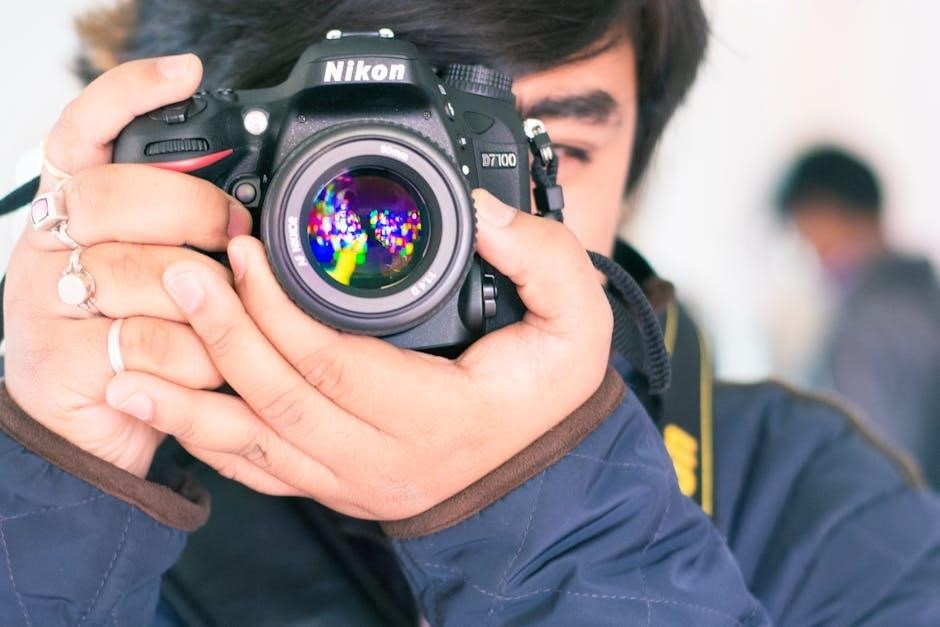
The Nikon D5500 is a versatile DSLR camera designed for both beginners and enthusiasts. Boasting a 24.2MP CMOS sensor and a maximum resolution of 6000 x 4000 pixels, it delivers high-quality images. This guide provides a detailed reference for understanding and utilizing its capabilities.
Access comprehensive documentation, including the user manual in PDF format, and leverage the Nikon Manual Viewer 2 app for convenient access on your smartphone or tablet, enhancing your photographic journey.
Key Features and Specifications
The Nikon D5500 features a 24.2MP CMOS sensor, delivering exceptional image detail. It captures images up to 6000 x 4000 pixels. Still image resolutions include (L) 6000×4000, (M) 4496×3000, and (S) 2992×2000.
Access detailed specifications and operational guidance through the official Nikon documentation, including downloadable PDF manuals and the convenient Nikon Manual Viewer 2 application for mobile devices, ensuring optimal performance.
Camera Setup and Basic Operations
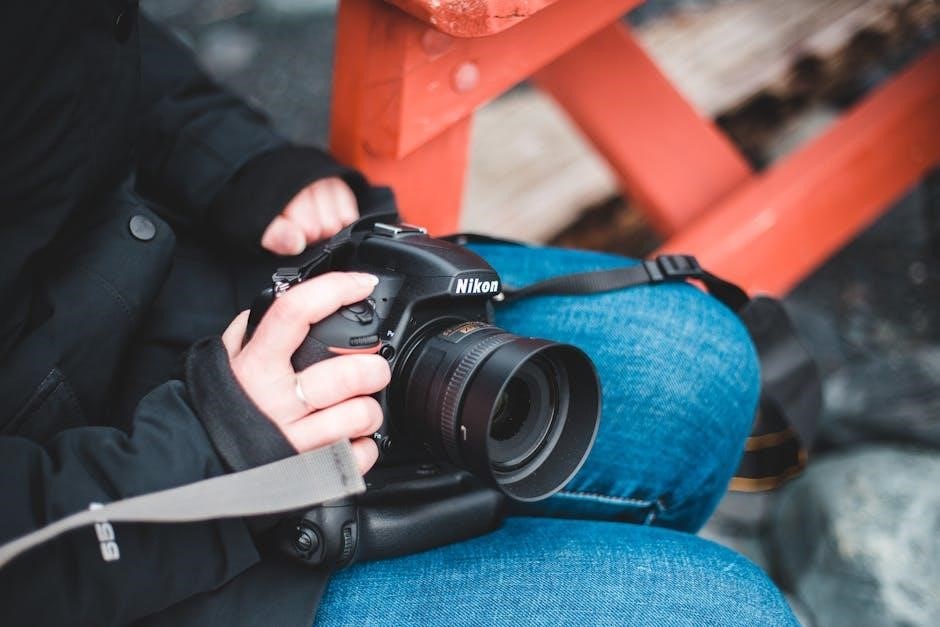
Begin with inserting the battery and a compatible memory card. Familiarize yourself with the mode dial and explore the intuitive menu system for customization.
Initial Setup: Inserting Battery and Memory Card
To begin, locate the battery compartment on the camera’s base. Insert the EN-EL14a battery, ensuring correct polarity, until it clicks into place. Next, open the memory card slot cover and insert a compatible SD card (SDHC/SDXC) label-side up. Gently push until it locks.
Confirm secure insertion of both components before powering on the camera. Proper installation is crucial for reliable operation and preventing data loss during image capture.
Understanding the Mode Dial
The Mode Dial, located on the top right, controls the camera’s shooting mode. Options include Auto, Scene (Portrait, Landscape, Sports, etc.), and Manual (M). Auto mode simplifies settings for beginners, while Scene modes optimize for specific situations.
Manual mode grants full control over aperture, shutter speed, and ISO. Other settings include effects and flash options, allowing for creative exploration and customized image capture.
Navigating the Menu System
The Nikon D5500’s menu system is accessed via the ‘MENU’ button. It’s organized into several tabs: Shooting, Display, Setup, and Custom Settings. Use the directional pad to navigate and the ‘OK’ button to select options.
The Nikon Manual Viewer 2 app provides a digital version of the user manual. This allows for easy reference to settings and functions directly on your smartphone or tablet.

Shooting Modes Explained
Explore diverse shooting options, from Auto for simplicity to Scene modes like Portrait and Sports. Master Manual mode for full aperture, shutter, and ISO control.
Auto Mode for Beginners
Auto mode simplifies photography, letting the Nikon D5500 automatically select optimal settings for various scenes. This is ideal for beginners, removing the complexity of aperture, shutter speed, and ISO adjustments. The camera intelligently analyzes the scene and optimizes settings for well-exposed, sharp images.
Focus on composition and capturing the moment, while the D5500 handles the technical aspects. It’s a fantastic starting point to learn photography without feeling overwhelmed by intricate controls.
Scene Modes: Portrait, Landscape, Sports, etc.
The Nikon D5500 offers diverse Scene Modes tailored for specific shooting situations. Portrait mode enhances skin tones, Landscape prioritizes sharpness and vivid colors, and Sports freezes action with faster shutter speeds. Other modes include Night Portrait, Macro, and more, each pre-configured for optimal results.
These modes simplify achieving desired effects, offering a convenient alternative to manual settings when quick adjustments are needed for varied photographic subjects.
Manual Mode: Aperture, Shutter Speed, and ISO
Manual Mode grants full creative control over exposure settings. Adjust aperture for depth of field, shutter speed to control motion blur, and ISO to manage sensitivity in varying light conditions. Mastering these three elements allows photographers to precisely capture their artistic vision.
Experimentation is key to understanding their interplay and achieving desired photographic outcomes, unlocking the D5500’s full potential.

Focusing and Exposure
Achieve sharp images with autofocus modes and precise exposure control. Utilize metering and exposure compensation for optimal results in diverse shooting scenarios.
Autofocus Modes and Focus Points
The Nikon D5500 offers versatile autofocus (AF) modes for various shooting situations. Single-point AF excels for stationary subjects, while continuous AF tracks moving targets effectively. Utilize the 39 focus points to pinpoint sharpness across the frame.
AF-area mode selection is crucial; choose from auto-area, single-point, dynamic-area, and 3D-tracking. Understanding these modes allows for precise control, ensuring consistently sharp and well-focused images, regardless of the subject’s movement or complexity.
Exposure Compensation and Metering Modes
Mastering exposure is key to great photography with the Nikon D5500. Exposure compensation adjusts brightness, overriding the camera’s automatic settings. Utilize metering modes – matrix, center-weighted, and spot – to determine how the camera evaluates light.
Matrix metering suits general scenes, center-weighted prioritizes the center, and spot metering measures a small area. Understanding these modes, alongside exposure compensation, grants full creative control over image brightness and tonal range.
Understanding ISO Sensitivity
ISO determines your Nikon D5500’s sensitivity to light. Lower ISOs (like 100) produce cleaner images in bright conditions, while higher ISOs (like 6400) enable shooting in low light, but introduce noise.
Balancing ISO is crucial. Higher ISOs allow faster shutter speeds, preventing blur, but at the cost of image quality. Experiment to find the optimal ISO for each situation, minimizing noise while achieving proper exposure.
Image Quality and Settings
Customize your Nikon D5500’s output with adjustable image size, quality, white balance, and Picture Control settings. Achieve desired results effortlessly.
Image Size and Quality Options
The Nikon D5500 offers versatile image size choices: (L) 6000 x 4000, (M) 4496 x 3000, and (S) 2992 x 2000 pixels. Select the resolution based on intended use – larger for prints, smaller for web sharing.
Quality settings include JPEG (Fine, Normal, Basic) and RAW for maximum editing flexibility. RAW captures all sensor data, while JPEG offers convenience and smaller file sizes.
White Balance Adjustment
Accurate white balance ensures colors appear natural under different lighting conditions. The D5500 provides presets like Daylight, Cloudy, and Fluorescent, alongside a customizable Kelvin setting for precise control.
Auto White Balance (AWB) is convenient, but manual adjustment often yields superior results, especially in challenging or mixed lighting scenarios. Experiment to achieve desired color tones.
Picture Control Settings
Nikon’s Picture Control settings allow you to customize the look of your images directly in-camera. Options include Standard, Neutral, Vivid, and Monochrome, each affecting color, contrast, and sharpness.
You can fine-tune these presets or create custom Picture Controls to match your artistic vision. These settings are non-destructive, meaning the original image data remains untouched, offering flexibility in post-processing.
Connectivity and Transferring Images
Transfer photos easily via USB to your computer or wirelessly using Wi-Fi and Bluetooth. Utilize the Nikon Manual Viewer 2 app for convenient access.
Connecting to a Computer via USB
To connect your Nikon D5500 to a computer, use a USB cable. Ensure the camera is turned off, then connect it to a USB port on your computer. Power on the camera, and select ‘USB’ from the camera’s connection options.
Your computer should recognize the camera as a removable drive, allowing you to transfer images. You may need to install Nikon software for optimal functionality, enabling features like image browsing and direct printing.
Wireless Connectivity: Wi-Fi and Bluetooth
The Nikon D5500 offers Wi-Fi and Bluetooth for convenient image transfer and remote control. Utilize the Nikon Manual Viewer 2 app on your smartphone or tablet to establish a connection.
Wi-Fi enables direct image sharing to social media or cloud services. Bluetooth allows for constant connection with your smart device, facilitating remote camera operation and instant image transfer.
Using the Nikon Manual Viewer 2 App
The Nikon Manual Viewer 2 app provides convenient access to your D5500’s digital manual on your smartphone or tablet. Download it free of charge from the App Store or Google Play.
This app allows you to view the manual anytime, anywhere, eliminating the need to carry a physical copy. It’s a valuable resource for understanding your camera’s features and troubleshooting issues on the go.
Advanced Features
Explore creative options like time-lapse photography, multiple exposure mode, and unique picture effects. Unlock the D5500’s full potential for artistic expression.
Time-Lapse Photography
Capture stunning time-lapse videos with the Nikon D5500, condensing long durations into short, visually captivating sequences. The camera automatically captures images at preset intervals, which are then assembled into a video. Experiment with different intervals to achieve varied effects, from subtle cloud movements to bustling cityscapes.
Review the resulting video directly on the camera’s LCD screen. This feature allows for creative storytelling and documenting slow-changing events in a dynamic way.
Multiple Exposure Mode
The Nikon D5500’s Multiple Exposure mode allows you to creatively combine two or more images into a single, artistic photograph. This feature offers various blending options, such as Average, Additive, Brightness, and Darken, to achieve unique effects.
Experiment with different settings and subjects to create surreal and imaginative compositions. Review the final image on the LCD to assess the combined result.
Creative Picture Effects
The Nikon D5500 offers a range of Creative Picture Effects to instantly alter the mood and style of your photographs. These include Standard, Vivid, Neutral, Portrait, Landscape, Flat, and Monochrome.
Each effect adjusts color, contrast, and sharpness to deliver a specific aesthetic. Experiment with these presets to enhance your images directly within the camera, simplifying post-processing.

Troubleshooting Common Issues
Resolve typical problems like the camera failing to power on, poor image quality, or connectivity difficulties. Consult this section for quick fixes and solutions.
Camera Not Turning On
If your Nikon D5500 fails to power on, first ensure the battery is fully charged and correctly inserted. Try a different, known-good battery if possible. Verify the battery contacts within the camera are clean and free of corrosion.
Also, confirm the memory card is properly seated; a faulty card can sometimes prevent startup. If the issue persists, reset the camera by removing both the battery and memory card for several minutes before reinserting them.
Image Quality Problems
Poor image quality on your Nikon D5500 can stem from several factors. Check your image size and quality settings – ensure you’re not shooting at a low resolution or heavily compressed JPEG setting. Verify proper white balance is selected for the lighting conditions.
Dust on the sensor can cause spots; consider sensor cleaning. Finally, confirm your lens is clean and properly focused, as blurry images indicate focusing issues, not necessarily camera malfunction.
Connectivity Issues
Experiencing trouble connecting your Nikon D5500? First, ensure the USB cable is securely connected to both the camera and computer. For wireless connectivity, verify Wi-Fi is enabled on both devices and you’ve entered the correct password.
Utilize the Nikon Manual Viewer 2 app for troubleshooting steps. Check for firmware updates, as these often address connectivity bugs. Restarting both the camera and computer can also resolve issues.
Understanding the Nikon D5500’s Sensor
The D5500 features a 24.2MP CMOS sensor, capturing images up to 6000 x 4000 pixels. This sensor delivers detailed photos with excellent clarity and color.
24.2MP CMOS Sensor Details
The Nikon D5500’s 24.2-megapixel CMOS sensor is a key component, enabling high-resolution images with impressive detail. It’s an APS-C format sensor, balancing image quality and camera size effectively. This sensor allows for a maximum image resolution of 6000 x 4000 pixels, providing ample data for cropping and large prints.
Its design contributes to excellent low-light performance and dynamic range, resulting in vibrant and clear photographs across various shooting conditions.
Maximum Image Resolution (6000 x 4000 pixels)
The Nikon D5500 captures images at a maximum resolution of 6000 x 4000 pixels, totaling 24.2 megapixels. This high resolution allows for significant cropping flexibility without substantial loss of detail, ideal for post-processing and specific compositions.
It also enables the creation of large, high-quality prints suitable for display or professional use, ensuring images retain sharpness and clarity at considerable sizes;

Available Manuals and Resources
Download the Nikon D5500 user manual in PDF format for detailed guidance. Explore Nikon’s support website and utilize the Nikon Manual Viewer 2 app.
Downloading the User Manual (PDF)
Accessing the Nikon D5500’s comprehensive user manual in PDF format is straightforward. Several websites offer free downloads of the official documentation, providing detailed explanations of all camera functions and settings. This allows users to study the camera’s capabilities at their own pace, offline.
Ensure the downloaded file originates from a reputable source to guarantee its authenticity and safety. The PDF manual covers everything from basic operations to advanced features, serving as an invaluable resource for both beginners and experienced photographers.
Nikon Support Website
The official Nikon Support website is a central hub for all D5500-related resources. Here, you’ll find frequently asked questions (FAQs), troubleshooting guides, and the latest firmware updates to optimize your camera’s performance.
Direct access to downloadable manuals, including the comprehensive user guide, is readily available. Nikon’s support team also offers contact options for personalized assistance, ensuring a smooth and satisfying photographic experience with your D5500.
Maintaining Your Nikon D5500
Proper care extends the D5500’s lifespan. Regularly clean the sensor and practice mindful battery care and storage for optimal performance and longevity.
Cleaning the Sensor
Dust accumulation on the sensor impacts image quality. Regularly inspect your Nikon D5500’s sensor for debris. Utilize a blower to gently remove loose particles first. For persistent dust, consider a sensor cleaning kit, following the manual’s instructions carefully.
Avoid touching the sensor directly, as it’s delicate and easily damaged. Professional sensor cleaning services are available if you’re uncomfortable performing this task yourself, ensuring optimal image clarity.
Battery Care and Storage
Maximize your Nikon D5500’s battery life with proper care. Avoid extreme temperatures and fully discharge the battery before recharging—though modern lithium-ion batteries benefit from partial charges. Store the battery in a cool, dry place when not in use.
Remove the battery for extended storage to prevent potential damage. Always use the supplied charger, and never leave a charging battery unattended, ensuring safe operation.